Exception Tasks
Overview
You have a production schedule that is comprised of template tasks, but sometimes you encounter an ad-hoc task that needs to be completed before the case can proceed. This is where exception tasks come into play, allowing you to insert custom tasks into your existing production workflow.
What are Exception Tasks?
Conceptually, exception tasks are very similar to production tasks in their functionality and behavior. However, unlike production steps that are predefined as part of a production template, exception tasks are created on-demand to address specific, unique requirements that arise during case production.
Creating Exception Tasks
To add an exception task to a case, you need to specify the following information:
- Template Selection: Choose an appropriate template that matches the nature of your exception task
- Name: Provide a clear, descriptive name for the additional task
- Description: Include detailed information about what needs to be accomplished
- Due Date: Set the deadline by which this task must be completed
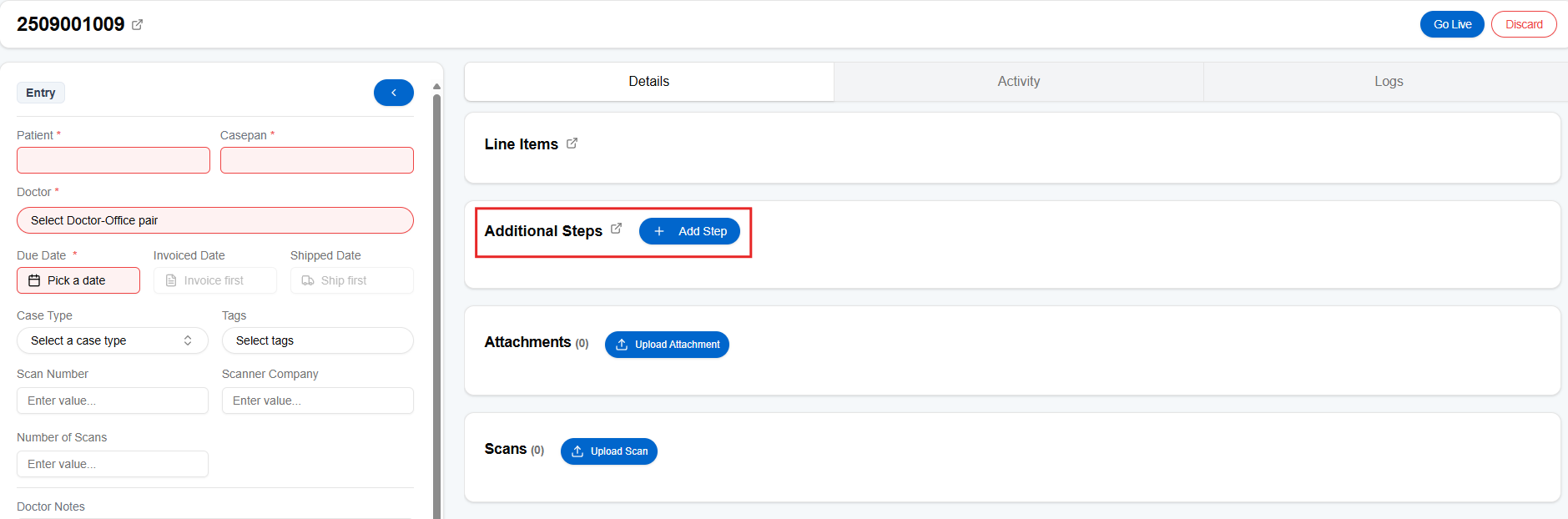
- Click + Add Step:
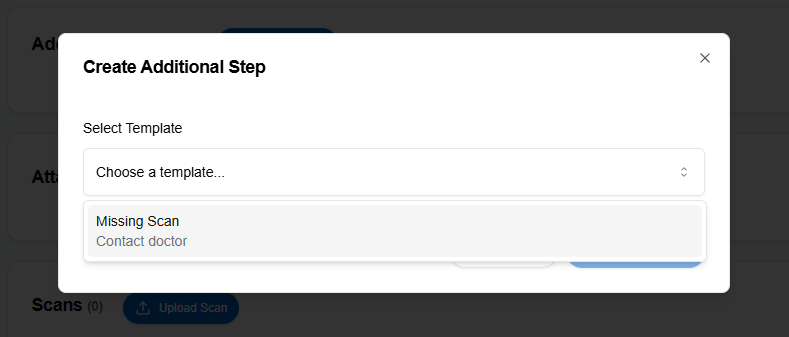
- Select Template from the dropdown:
- Add the required Title and Description:
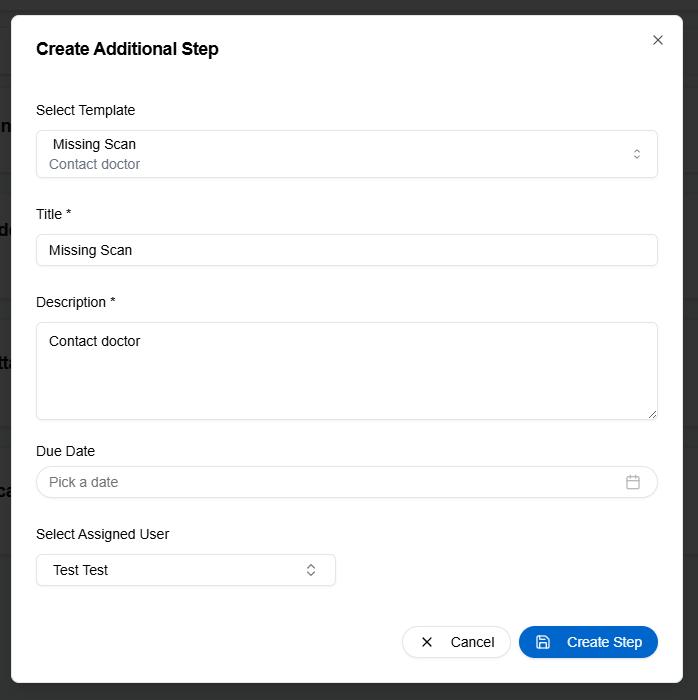
- You can edit to make changes:

Notification and Tracking
When an exception task is created, the assigned person will be automatically notified about the new task. This ensures that ad-hoc requirements don't get overlooked in the busy production environment. If the assignee does not complete the exception task by the specified due date, Pilot will automatically create a Case Warning for this case. This Case Warning will appear in the activity tab, providing visibility into overdue tasks and ensuring that delays are promptly addressed.
Search Using Quick filters
- Look for the column Has Exception Tasks -> select YES
- Select the specific exception task

Search Using Advanced Filters
-
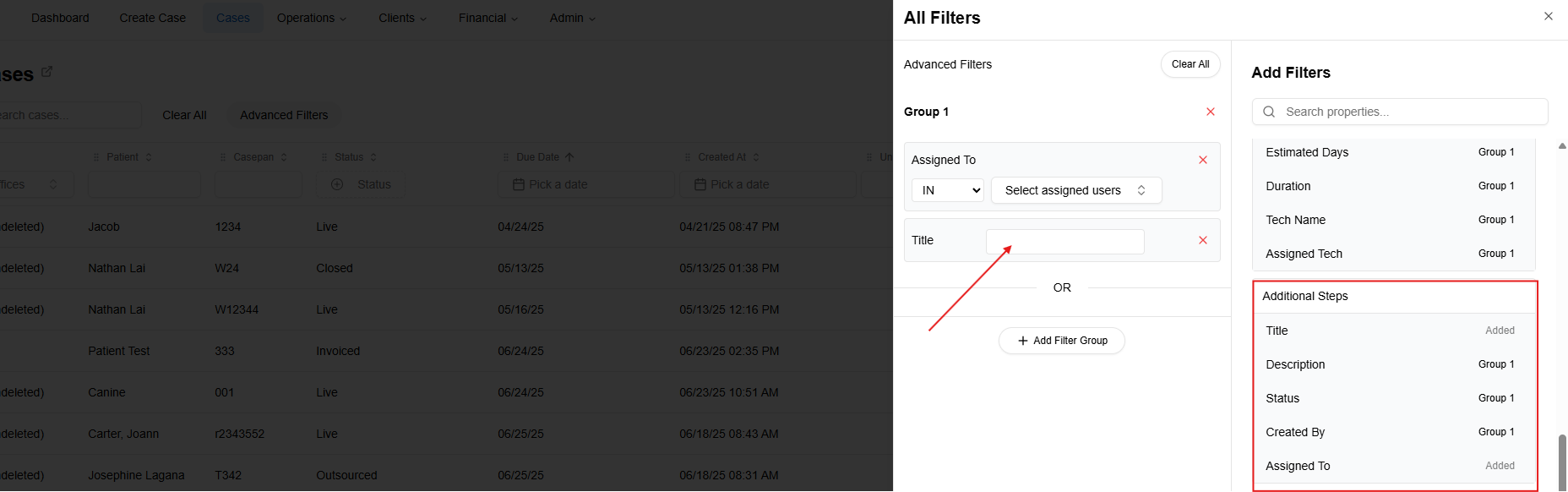
Advanced Filters -> + Add Filter Group to add Group 1
-
Clicking on Group 1, add which filters you need such as Assigned To, Title, and Due Date under Exception Tasks
Benefits
- Flexibility: exception tasks allow you to adapt your production workflow to unexpected requirements without disrupting the overall case management process.
- Tracking: Each exception task is tracked just like a template step, ensuring that all tasks are documented and monitored.
- Communication: Notifications keep team members informed about new tasks, reducing the risk of miscommunication or missed deadlines.